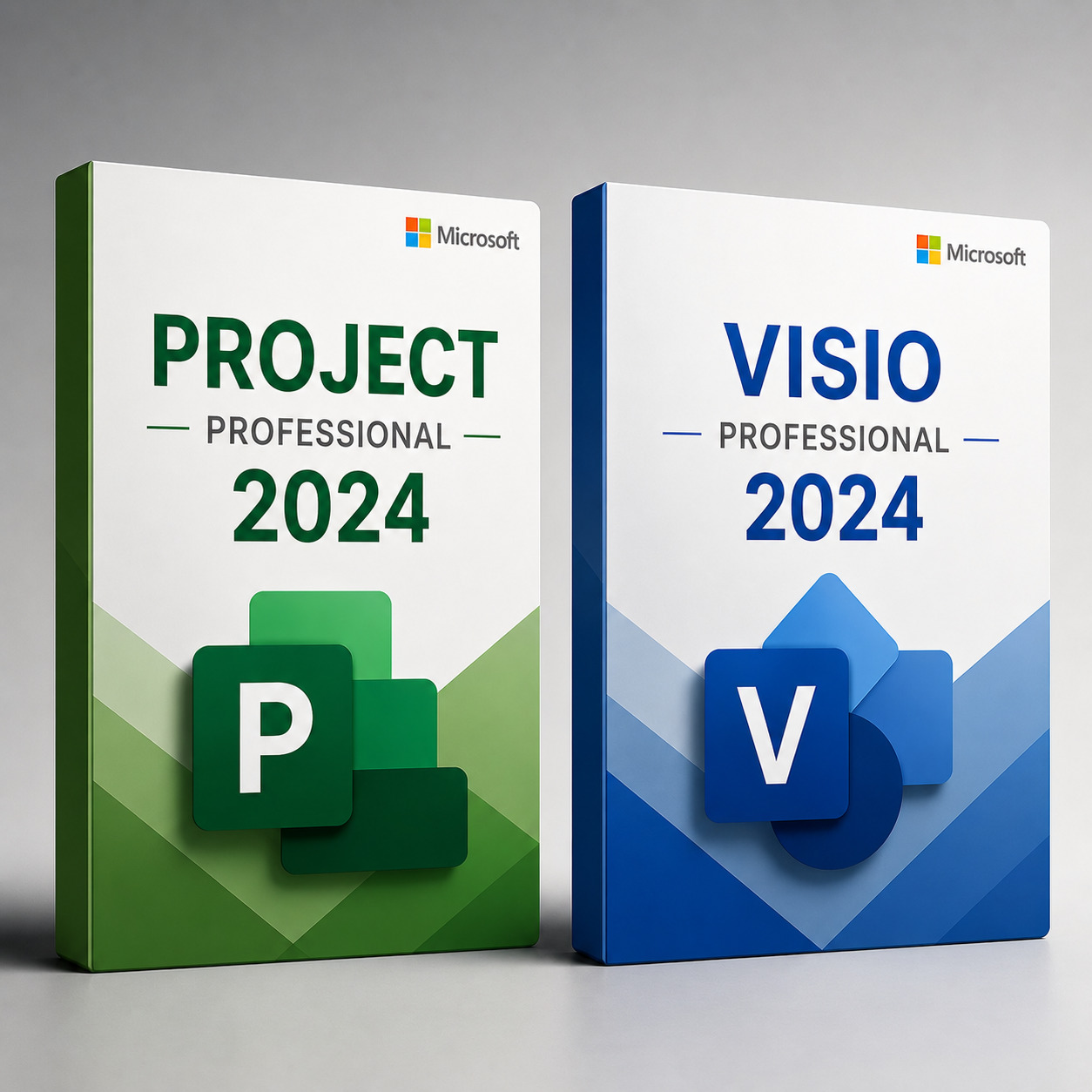
Microsoft Project Professional 2024 + Microsoft Visio Professional 2024 — Pro Bundle (Lifetime Keys)
This bundle includes 2 separate product keys — one for Project Professional 2024 and one for Visio Professional 2024. The keys are independent: activate both on the same PC, or install them on different computers. Both keys are delivered together, instantly.
Check Before You Buy
- Office is not included. This bundle is Project and Visio only. Word, Excel, PowerPoint and Outlook are sold separately.
- Windows only: for Windows 10 and Windows 11, 64-bit. Not for Mac or Chromebook.
- Separate keys: 2 separate keys — install on one PC or split across different computers.
- Previous versions: uninstall older Project or Visio installations and any Microsoft 365 trials before installing.
What’s Included
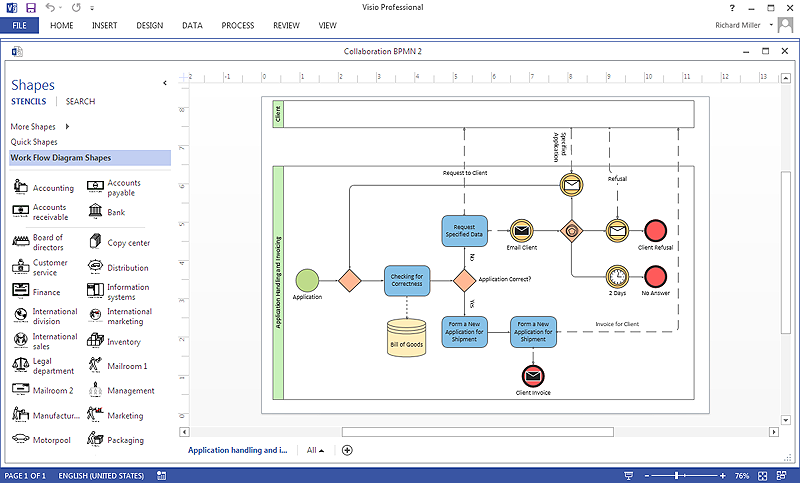
Two perpetual desktop licenses, delivered as two independent product keys. Project handles the schedule, the budget and the people. Visio handles everything you need to draw and explain. Together they cover the planning and documentation side of professional work that Office alone does not.
Microsoft Project Professional 2024 in Detail
Project Professional 2024 is the desktop project management application from Microsoft, sold as a one-time perpetual license. It is the tool used to build a schedule, assign the people who will do the work, track what actually happened against what was planned, and report on it. Everything runs locally on your PC — no subscription, no cloud account required.
Building and running a schedule
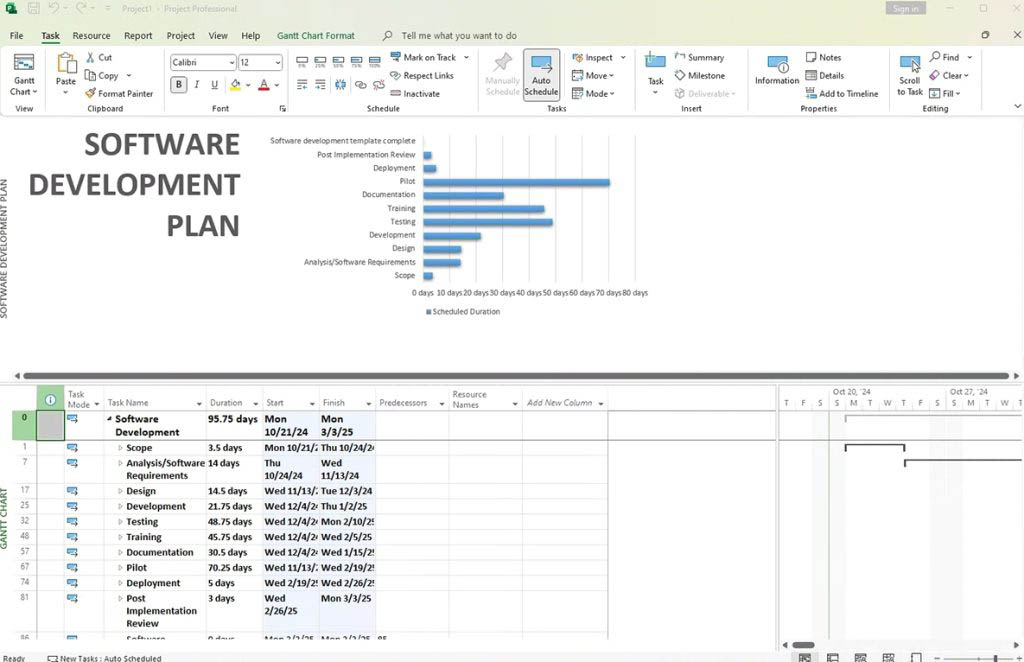
- Gantt chart view — the core planning view. Enter tasks, set durations, drag to reschedule, and see the whole project on a timeline.
- Task dependencies — link tasks as Finish-to-Start, Start-to-Start, Finish-to-Finish or Start-to-Finish, with lead and lag time. Move one task and everything downstream recalculates automatically.
- Automatic and manual scheduling — let Project calculate dates from durations and links, or pin tasks to fixed dates when reality demands it. You can mix both modes in the same plan.
- Critical path analysis — Project highlights the chain of tasks that determines your finish date, so you know exactly which delays actually matter and which have slack.
- Baselines — save a snapshot of the approved plan, then compare actual progress against it at any point. Up to 11 baselines per project, which is how you prove what changed and when.
- Milestones, summary tasks and WBS — structure work into phases and sub-phases with a proper work breakdown structure and outline numbering.
- Calendars and working time — define project, task and resource calendars: working days, shifts, holidays and exceptions.
- Deadlines and constraints — set target dates and let Project warn you when the schedule violates them.
People, resources and cost
- Resource assignment — assign work, material and cost resources to tasks, with units, rates and availability.
- Overallocation detection and resource leveling — Project flags people booked beyond capacity and can level the schedule automatically to resolve conflicts.
- Team Planner — a drag-and-drop view of who is doing what and when, available in the Professional edition. Reassign work by dragging a task from one person to another.
- Resource pool sharing — share a common resource list across several project files so you can see total load per person across the portfolio.
- Cost tracking — standard and overtime rates, fixed costs, cost accrual, budget cost resources, planned versus actual spend.
- Earned value analysis — the standard EVM fields (BCWS, BCWP, ACWP, CPI, SPI) for formal cost and schedule performance reporting.
Views, boards and reporting
- Task Board and Sprint views — kanban-style boards for teams that work in an agile or hybrid way, alongside the classic Gantt.
- Timeline view — a clean, presentation-ready summary of the plan you can copy straight into PowerPoint or an email.
- Network diagram, Calendar, Resource Sheet, Resource Usage and Task Usage views — the same plan seen from every angle that matters.
- Built-in reports — Project Overview, Cost Overview, Work Overview, Burndown, Critical Tasks, Late Tasks, Resource Overview, and more, all as formatted graphical reports you can print or export.
- Custom fields and formulas — build your own calculated columns, flags and graphical indicators.
- Filters, groups and highlights — slice a large plan down to what you need to see right now.
- Master projects and subprojects — consolidate several plans into one master schedule with cross-project links.
Files, sharing and connectivity
- Native .mpp files — opens and saves the standard Project format, including files from Project 2016, 2019 and 2021.
- Import and export — Excel, CSV and XML in both directions, so you can pull a task list out of a spreadsheet or hand data to another system.
- Export to PDF and XPS — send a clean, read-only schedule to people who do not have Project.
- Copy to Office — paste Gantt and Timeline views into PowerPoint, Word or Outlook with formatting preserved.
- Project Server and Project Online connectivity — the Professional edition can connect to an on-premises Project Server or a Project Online instance if your organisation runs one. Standard cannot. A server subscription is not included and is not required for standalone desktop use.
Professional versus Standard
| Capability | Standard | Professional |
|---|---|---|
| Gantt, scheduling, baselines, critical path | Yes | Yes |
| Built-in reports and Timeline view | Yes | Yes |
| Task Board and Sprint (agile) views | Yes | Yes |
| Team Planner view | No | Yes |
| Resource pool sharing across projects | Limited | Yes |
| Project Server / Project Online connectivity | No | Yes |
This bundle includes the Professional edition — the full version, not the cut-down one.
Microsoft Visio Professional 2024 in Detail
Visio Professional 2024 is Microsoft’s desktop diagramming application, sold as a one-time perpetual license. It turns processes, systems and structures into diagrams that other people can actually read. Where a drawing tool gives you shapes, Visio gives you shapes that know the rules of the notation they belong to — connectors that stay attached, stencils built to industry standards, and validation that tells you when a diagram is wrong.
What you can build
- Flowcharts and process maps — basic flowcharts, cross-functional flowcharts with swimlanes, workflow diagrams and SDL diagrams.
- BPMN 2.0 process diagrams — full Business Process Model and Notation support with validation, for teams that document processes formally.
- UML 2.5 diagrams — class, sequence, use case, activity, state machine, component, deployment and package diagrams from the modern UML stencils.
- Network and IT diagrams — basic and detailed network topology, rack diagrams with real equipment shapes, Active Directory and LDAP directory diagrams.
- Cloud architecture — Azure and AWS shape sets for documenting cloud infrastructure.
- Organisation charts — build manually or generate automatically from an Excel file or a directory export, with photos and automatic layout.
- Database diagrams — entity relationship models and database notation, including reverse-engineering an existing database into a diagram.
- Floor plans and space planning — office layouts, seating plans, home plans, site plans and HVAC or electrical plans to scale.
- Engineering diagrams — electrical, piping and instrumentation (P&ID), process flow, fluid power and mechanical engineering stencils.
- Business and quality diagrams — value stream maps, cause and effect (fishbone) diagrams, Six Sigma and ITIL templates, mind maps and brainstorming diagrams.
- Wireframes and UI mockups — quick interface layouts for web and software design.
- Timelines, calendars, charts and graphs — presentation-ready visuals without leaving Visio.
Data-connected diagrams
This is what separates Visio from a drawing program. A Visio shape can be linked to a row of live data, and its appearance can change based on that data.
- Link shapes to data — connect diagrams to Excel workbooks, Access databases, SQL Server or other ODBC sources.
- Data graphics — display linked values directly on the shape as text callouts, data bars, icon sets or colour coding. A server shape can go red when its linked status field says so.
- Data Visualizer — build a structured Excel table of process steps and have Visio generate the flowchart or cross-functional diagram from it automatically, then keep the two in sync.
- Refresh on demand — update the source data and the diagram updates with it, instead of redrawing by hand.
Working with diagrams
- Smart connectors and AutoConnect — connectors stay glued to shapes and reroute themselves when you move things around.
- Themes and styles — apply a consistent visual identity across an entire diagram in one click.
- Containers and layers — group related shapes logically and control what is visible or printable.
- Diagram validation — check flowcharts, BPMN and other structured diagrams against the rules of the notation and get a list of specific issues to fix.
- Custom stencils and shapes — build and reuse your own shape libraries, or import third-party stencils.
- Comments and review — annotate diagrams for feedback without disturbing the drawing itself.
- Shape Data and ShapeSheet — attach structured properties to shapes and drive behaviour with formulas when you need precision.
Files, import and export
- Native .vsdx and .vsdm formats, plus full compatibility with legacy .vsd files from earlier versions.
- Stencil and template files — .vssx, .vstx and their macro-enabled equivalents.
- AutoCAD DWG and DXF import — bring existing CAD floor plans into Visio and build on top of them.
- Export to PDF, XPS, SVG and standard image formats (PNG, JPG, GIF, TIFF, EMF) for sharing with people who do not have Visio.
- Export to HTML — publish a navigable diagram to a web page.
- Paste into Office — drop diagrams into Word, PowerPoint or Excel as editable objects or clean images.
Professional versus Standard
| Capability | Standard | Professional |
|---|---|---|
| Flowcharts, org charts, basic network diagrams | Yes | Yes |
| Basic floor plans and timelines | Yes | Yes |
| UML 2.5 and BPMN 2.0 template sets | Limited | Yes |
| Link shapes to external data + data graphics | No | Yes |
| Database reverse engineering | No | Yes |
| Diagram validation rules | No | Yes |
| Engineering, ITIL and Six Sigma stencils | No | Yes |
This bundle includes the Professional edition — the one with data linking and the full template library.
Why These Two Together
Project and Visio solve the two halves of the same job. Project answers when, who and how much. Visio answers how it works and what it looks like. In practice they get used side by side:
- Map the process in Visio, then build the schedule for it in Project.
- Draw the network or system architecture in Visio, then plan the migration in Project.
- Produce the Gantt in Project and the org chart in Visio for the same status pack.
- Document a workflow in BPMN, then turn each stage into a work breakdown structure.
Both paste cleanly into Word, PowerPoint and Outlook, so the output ends up in the same deck.
Who Is This Bundle For?
- Anyone who already has Office and only needs the planning and diagramming tools.
- Project managers and PMO staff running schedules, baselines and resource plans.
- Business analysts documenting processes in BPMN and building requirement models in UML.
- IT and network administrators mapping topology, racks, directory structure and cloud architecture.
- Engineers and architects working with scaled plans, P&ID and electrical diagrams.
- Consultants and small agencies producing client-facing plans, process maps and org charts.
- Students and career changers learning project management or systems analysis on the real industry tools.
What This Is NOT
- Office is not part of this bundle — no Word, Excel, PowerPoint or Outlook.
- Not Microsoft 365 — these are perpetual desktop licenses, not subscriptions.
- Not a trial — these licenses do not expire.
- Not for Mac — Microsoft does not release Project or Visio for macOS.
- Not a Project Server or Project Online subscription — Project Professional can connect to one if your organisation already runs it, but no server access is included here and none is needed for standalone desktop use.
System Requirements
| Operating system | Windows 11 or Windows 10, 64-bit. Not compatible with macOS, Chromebook, Linux, Windows 8.1 or earlier, or Windows in S mode. |
| Processor | 1.6 GHz or faster, 2-core. ARM64 supported on Windows 11. |
| Memory | 4 GB RAM minimum, 8 GB recommended for large schedules and complex diagrams. |
| Disk space | About 4 GB free per application. |
| Display | 1280 x 768 minimum resolution. |
| Internet | Required for download and one-time activation. Not required for daily use afterwards. |
How It Works
- Buy and receive your keys. Both product keys arrive by email immediately after payment, together with download links.
- Remove conflicting versions. Uninstall any older Project or Visio installation and any Microsoft 365 trial before you start.
- Install Project 2024 and Visio 2024 from the official Microsoft download links in your email.
- Activate each product with its own key. Full step-by-step instructions for both are included in the same email.
- Stuck at any point? Reply to the delivery email. A human answers.
Frequently Asked Questions
Keys & Activation
Is this one key or several?
This bundle includes 2 separate product keys — one for Project Professional 2024 and one for Visio Professional 2024. Each is activated separately with its own steps.
Can I install the products on different computers?
Yes. The keys are independent, so you can keep Project on one PC and Visio on another.
Do I need Microsoft Office installed first?
No. Project and Visio install and run on their own. If you already have Office, they work alongside it without conflicts.
What happens if I replace my PC or reinstall Windows?
Contact us and we will sort out your activation. Our replacement guarantee has no time limit and no charge.
Do these licenses expire?
No. They are perpetual desktop licenses. There is no renewal and no subscription.
Compatibility & Files
Which Windows versions are supported?
Windows 10 and Windows 11, 64-bit. Project and Visio are not available for macOS or Chromebook.
Can I open files made in older versions?
Yes. Project 2024 opens .mpp files from Project 2016, 2019 and 2021. Visio 2024 opens both modern .vsdx files and legacy .vsd files.
Can I share files with colleagues who use Microsoft 365?
Yes for reading and editing the file formats — .mpp and .vsdx are the same formats used by the subscription versions. Note that cloud-only collaboration features such as real-time co-authoring in the browser belong to the subscription service, not to a perpetual desktop license.
How do I share a diagram or schedule with someone who has neither program?
Export to PDF. Visio can also export to SVG, PNG and other image formats, and Project can paste its Gantt or Timeline view directly into PowerPoint.
Can Visio import my existing AutoCAD floor plan?
Yes. Visio Professional imports DWG and DXF files, so you can build on top of an existing CAD drawing.
Updates & Support
Do I get updates?
Yes, security and quality updates for the 2024 release through Microsoft’s normal update channel. Perpetual licenses do not receive new feature releases — those come with the next version.
Is this the Professional or the Standard edition?
Professional for both products. That means Team Planner and resource pool sharing in Project, and data-linked diagrams, UML 2.5, BPMN 2.0 and validation in Visio.
Pricing, Authenticity & Support
Is the price final? Is it genuine?
The price is final and includes all taxes. All licenses are genuine and work worldwide.
How is it delivered? Can I get support?
Instantly by email after payment. Reach out before opening a dispute and we’ll resolve any issue fast, with refunds or replacements if needed.
Get Project 2024 + Visio 2024 — the planning and diagramming toolkit
Two separate genuine keys, one-time purchase. Instant delivery and real human support.